
Practice Desk
A focused desktop workspace for musical practice, analysis, and timing, combining advanced playback controls, integrated audio tools, and a full-featured metronome.
Practice Desk brings three things into one place on your desktop Mac: a playback environment built for looping, slowing down, and hearing details in audio tracks; a full-featured metronome for timing practice; and lightweight organization for relevant audio files, documents, and notes, so you can return to serious practice immediately without rebuilding your setup and hunting down files or information every time.
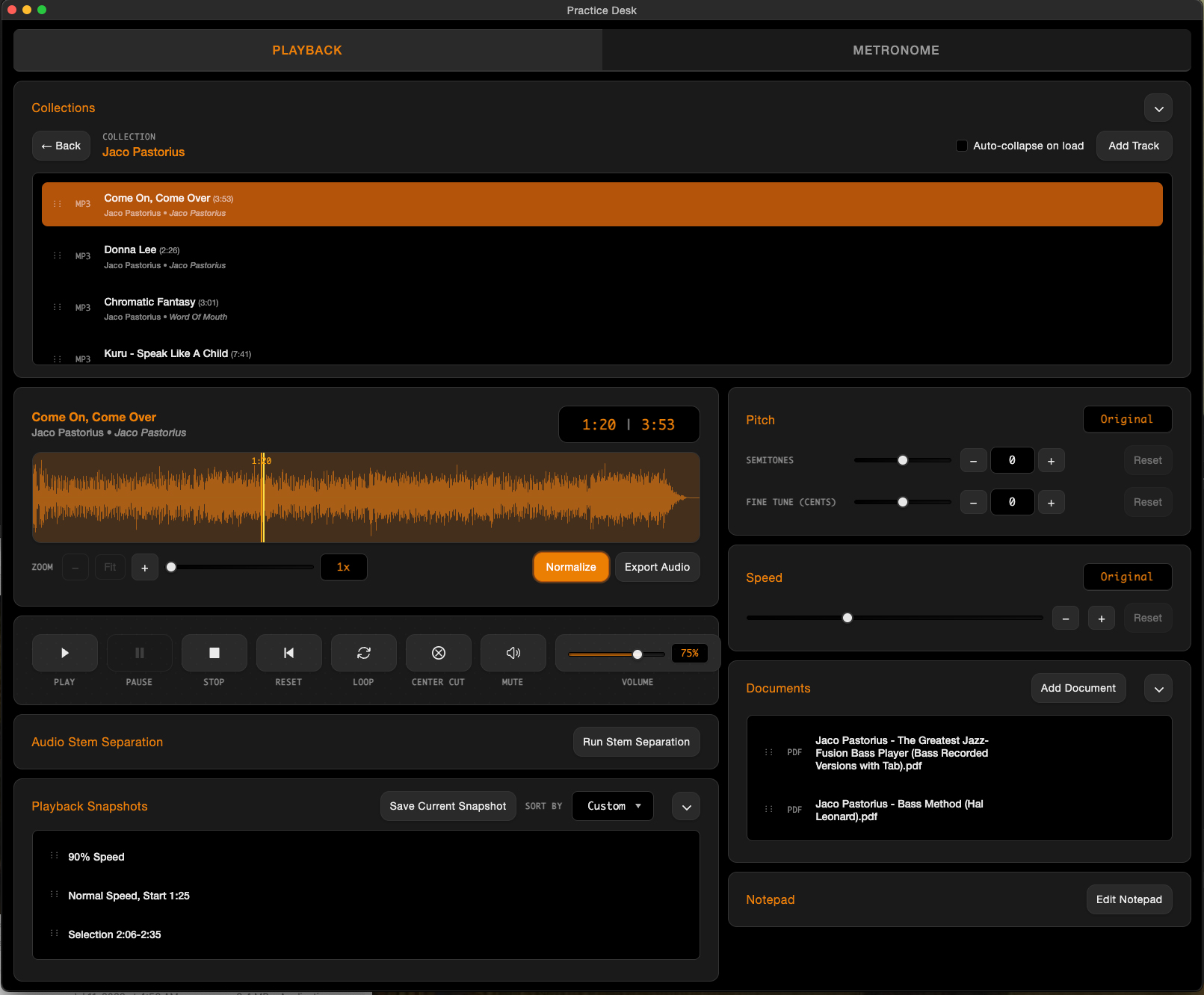
Who Practice Desk is for
This app is designed for musicians who:
- Work with recordings: transcribing, learning solos, studying arrangements, or practicing along with music tracks.
- Use a metronome seriously, not just for a few clicks before starting a piece.
- Want an organized, low friction practice setup where tracks, timing tools, notes, and documents stay together and allow for quick and easy access.
It is a good fit for:
- Instrumentalists and singers working with commercial recordings or lesson audio.
- Teachers who want a stable tool they can recommend to students without accounts, subscriptions, or online access.
- Musicians who prefer native desktop tools instead of browser tabs or small mobile devices, and local digital music files instead of streaming services.
Playback controls
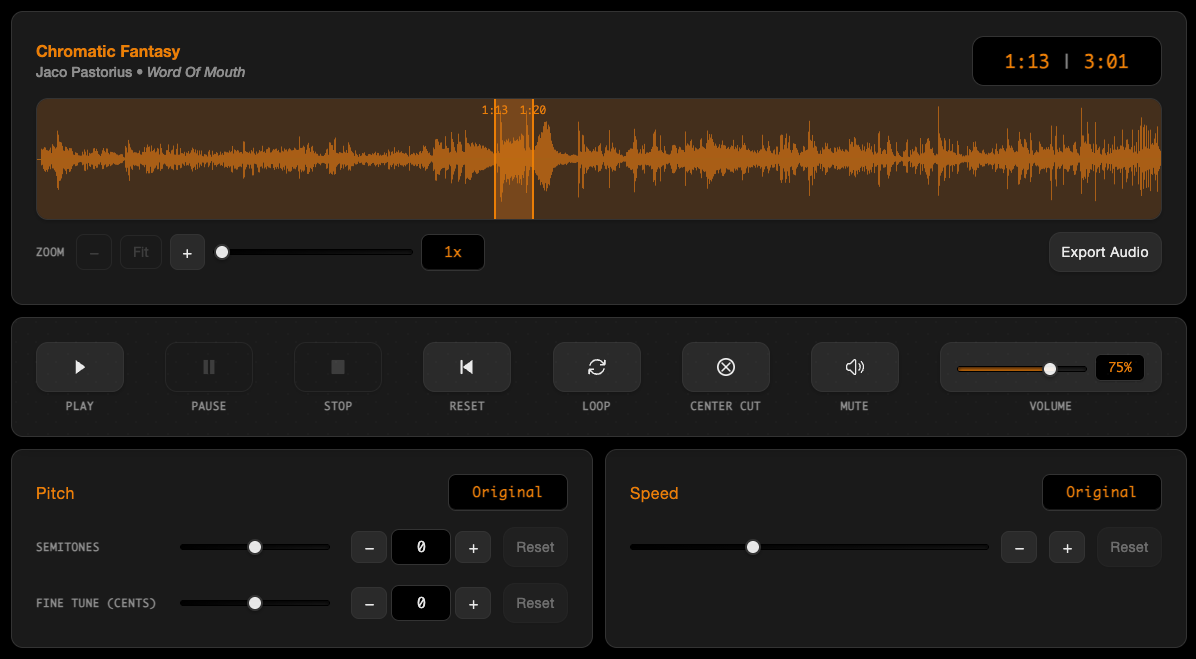
The app’s Playback tab is centered on a waveform view of your current track with controls arranged around it for everything you actually do with audio during practice and/or transcription.
Work directly with recorded tracks
- Load common audio formats (including WAV, FLAC, and MP3) from your own local files.
- See the full track as a clear waveform, so you can visually aim at phrases and sections as needed.
- Click and drag to set a selection, loop it if desired, to listen repeatedly.
- If embedded in the local file, metadata (artist name, song title, album name) is displayed in the app.
Adjust speed and pitch independently
- Slow a track down or speed it up while keeping pitch intact.
- Shift pitch in semitones and cents without affecting tempo.
- Onscreen readouts show exactly how far you have moved from the original.
- One click resets bring you back to the untouched track, whenever you are ready.
Adjust the mix
- Normalize raises a track that was mastered quietly, so it sits at a healthier level without changing its dynamics. Tracks that are already fairly hot stay as they are, and the control remains hidden when there is no available headroom.
- Center Cut reduces content that is mixed in the middle channel of the stereo field, which often reduces lead vocals or solo instruments that sit in the middle of a mix.
- Volume and Mute are always available and are retained consistently across tracks.
Audio Stem Separation
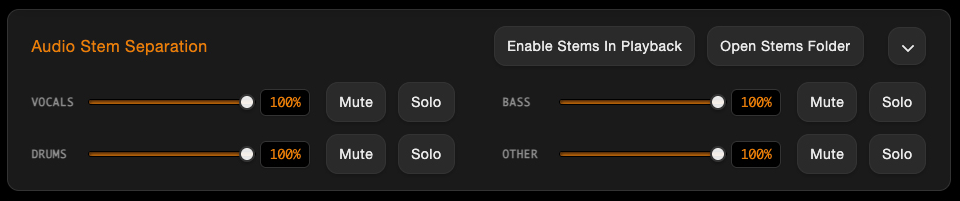
On supported Macs only, Practice Desk can create four stems from a full mix:
- Vocals
- Drums
- Bass
- Other (everything else in the mix)
Stem separation is an offline process that runs entirely on your machine. The app never uploads audio to any service.
When stems have been created for a track:
- An Enable Stems In Playback toggle lets you switch between the original mix and the stem mix without changing your waveform status, selection, or loop.
- A compact mixer gives you separate volune sliders for each stem, with simple Mute and Solo controls.
- You can quickly create practice setups such as lowering vocals to sing over the track, muting bass to play along with the drummer, or isolating drums and bass together to work with rhythm more clearly.
Stem availability depends on your hardware. On older or unsupported machines, the stem separation feature stays hidden rather than attempting impossibly slow runs.
Snapshots: remember how you were working
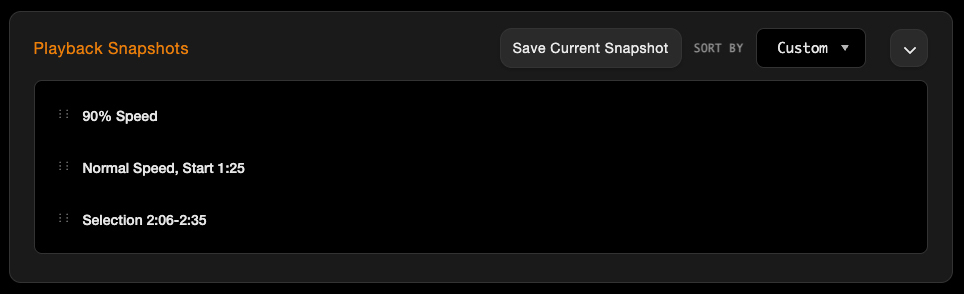
Practice sessions often end in the middle of a delicate setup: a precise loop, a certain tempo change, a stem balance, or a Center Cut option that worked surprisingly well. Practice Desk lets you capture and return to those setups using one-click snapshots.
Playback snapshots
Playback snapshots store the state of a track, including:
- Speed and pitch.
- Loop or selection and current position.
- Waveform zoom and scroll.
- Center Cut state.
- Loop state and volume.
- Stem playback mode and stem mixer settings, when stems exist.
You can save multiple snapshots per track and give them your own names, or let the app auto name them using its own generated descriptions such as:
75% Speed, -2 semitones, Selection 1m30s-2m45sCenter Cut, Selection 0m08s-0m16s50% Speed, Stem Mix, Selection 0m10s-0m20s
Loading a snapshot restores both what you hear and what you see, so returning to detailed work is a single click instead of a complicated and time-consuming rebuild.
Export what you have changed
When you need your modified track outside Practice Desk, the export pipeline renders adjusted audio to disk without touching your original files.
- Export formats: WAV, FLAC, and MP3 at a variety of fixed bitrates.
- Choose between exporting the full track or the current selection on the waveform.
- When stems exist for a track, export can use either the original full mix or your stem mix with its current levels and mutes.
- Normalize is respected at export time so normalized playback and the rendered file match.
- Basic metadata fields for title, artist, album, track number, and year are editable, and help exported files look correct in players and library software.
Collections, documents, and notepad
Practice is easier when the materials around an audio file are internally associated with the track, and when references to local files are organized into collection folders.
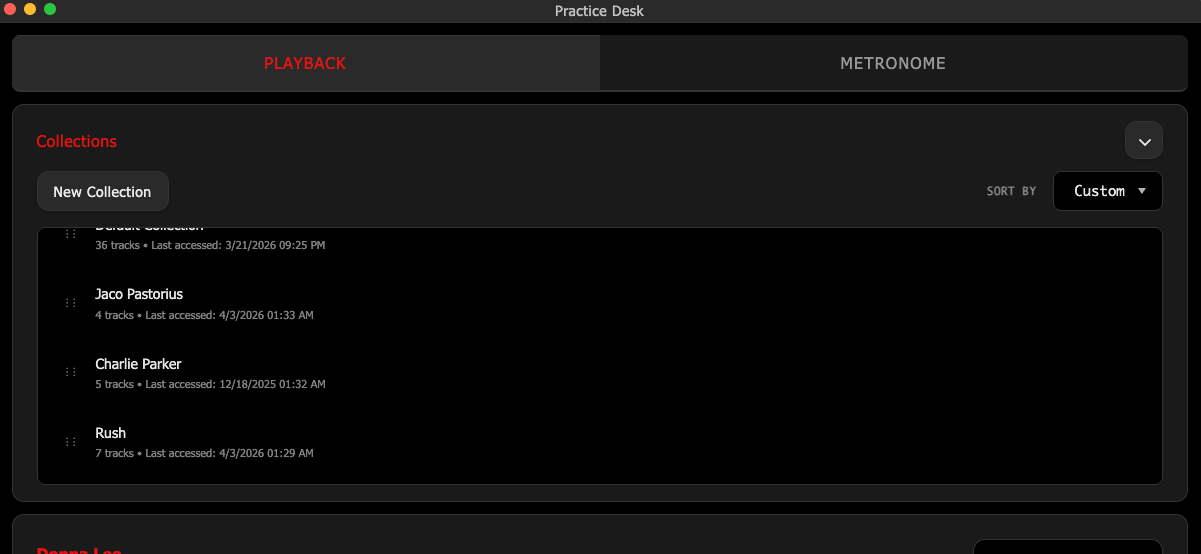
Collections
- Group tracks into collections that make sense for you, such as a recital program, or a set of recordings from a particular musician.
- Collections remember the order of tracks and recent activity so you can drop back into current work quickly.
- A random track function can pick a new track from the currently loaded collection when you want variety without thinking about it.
Documents
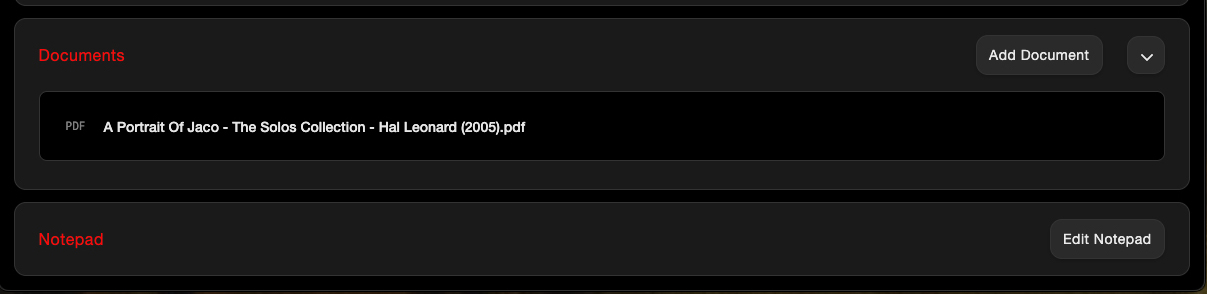
- Each track can have its own Documents panel for charts, scores, PDFs, images, and other files.
- Open a linked document in its default app with a single click.
- Reveal the containing folder in Finder when you need to manage those files.
- Reorder or remove linked documents without hunting through your file system.
Notepad
- A per track Notepad lives alongside your audio and documents, and stores simple text so you can capture fingerings, lyrics, phrasing ideas, reminders, or coaching notes that belong to this track.
- The note is associated with the track, so comments are not lost in a separate notes app.
- Limits and gentle messaging keep the Notepad practical without turning it into a full text editor.
When you open a track, audio, documents, and notes can all be visible at once. This reduces setup overhead so more of your time goes into playing.
Metronome: timing, structure, and long form work
The Metronome tab is a separate space that is not tied to any particular recording or file. It is meant for timing practice that stands on its own.
Flexible meter and accents
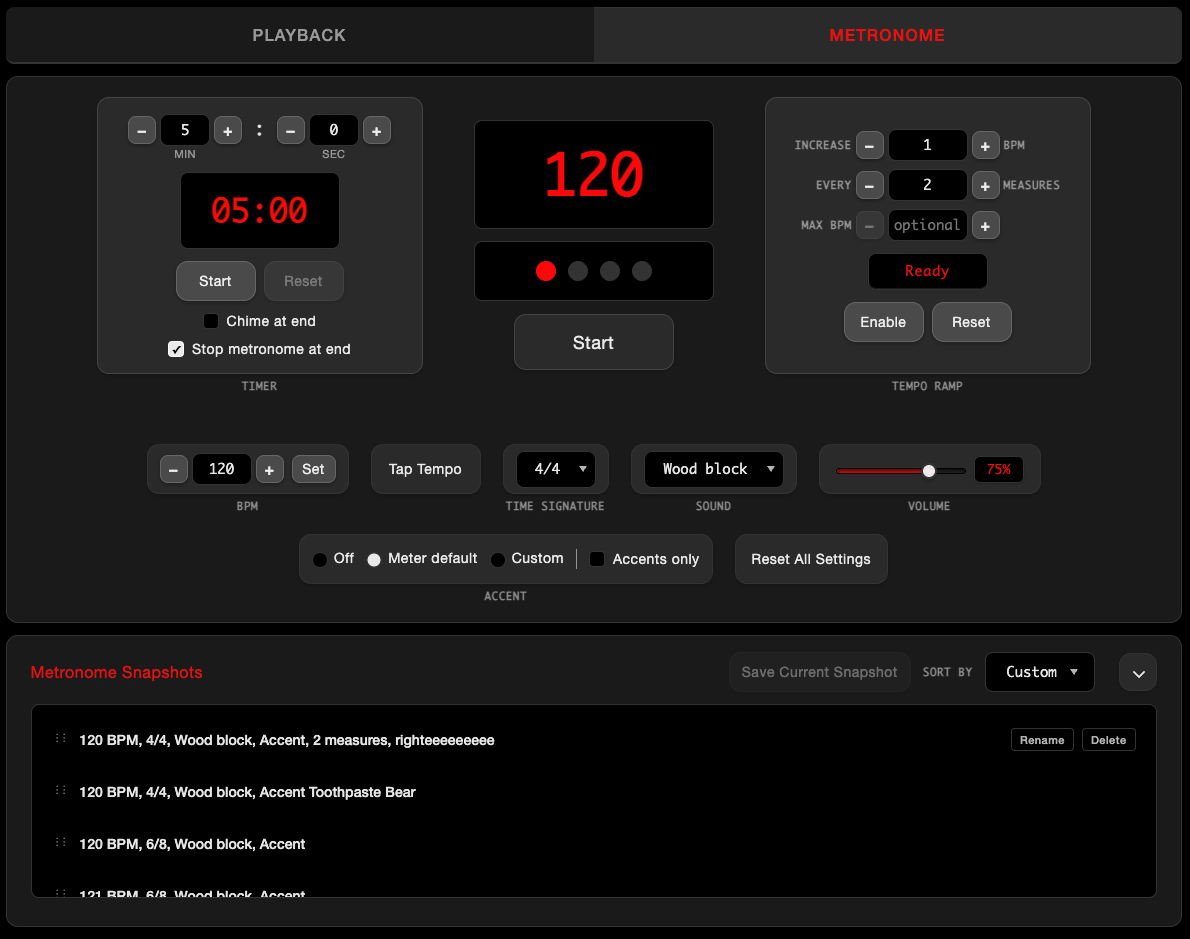
- Support for common and extended time signatures, including more complex meters.
- Beat indicators that make subdivision visible, with layouts that stay readable even at higher numerators.
- Accent patterns that can follow the meter or be customized, so you can emphasize groupings in compound time or turn accents off when you want a flat click.
Tempo ramps and timers
- Tempo Ramp lets you design exercises where tempo increases step by step, with each step given a clear time at one BPM before moving on.
- A countdown timer can frame practice blocks or longer repetitions so you can focus without checking the clock.
- Optional end behavior lets you decide how the metronome behaves when the timer finishes.
Metronome snapshots make it easy to save and recall full setups for particular drills, including tempo, meter, ramp, accents, and timers.
Metronome snapshots
On the Metronome side, snapshots store complete metronome settings:
- Tempo, time signature, sound, and accent pattern.
- Tempo ramp settings.
- Timer values and behavior.
This lets you keep a library of specific rhythmic drills that can be recalled in one click, without recreating tempo ramps or custom accent patterns each time.
Backup and restore your practice world
Your practice setup can represent a lot of time and thought, not just a few files. Practice Desk includes tools to protect it:
- Create a full backup of collections, snapshots, recent tracks, settings, and preferences as a single portable file.
- Restore from a backup when moving to a new machine or recovering from a problem.
- Use Reset to Defaults when you want to return to a clean state, knowing that a backup is available if needed.
These tools keep the structure around your practice as durable as your recordings.
Local, private, and focused by design
Practice Desk is built for musicians who value focus and privacy.
- It runs entirely on your Mac. There is no sign in, no account system, and no background network communication.
- Audio analysis, stem separation, and export all happen locally.
- Tracks and documents are opened through system dialogs and stored where you keep them. Stems, settings, and backups live under the app support folder, not in a cloud account.
- The app does not insert ads, rewards, social feeds, or unrelated content into your practice time.
- Dark and light themes are built into the app, with a variety of highlight colors and two font choices.
The goal is a tool that feels like part of your studio, not another online service.
Availability
- Platform: macOS desktop in July 2026. Windows desktop planned for summer 2026.
- Distribution: standalone Mac/Windows app, installed like other desktop applications.
- Network requirements: none after download and installation.